IRDX Logger Help: Delete App / Delete Data
Back to Logger
Use this only when the app behaves broken after updates (cache/service worker issue).
! This removes only local offline app data on your device.
If you already have an active subscription, your data is secured on the server.
If you want to protect your work and support this project, use the ❤️ Upgrade Center.
If you want to protect your work and support this project, use the ❤️ Upgrade Center.
Offline mode not working or Log Sync Mistake after F5 refresh and Hard-Reset?
Step 1: Check Service Workers
Security extensions/apps can block Service Worker script loading, even when browser extensions look disabled.
- Open https://irdx-logger.org/.
- Press
F12to open DevTools.
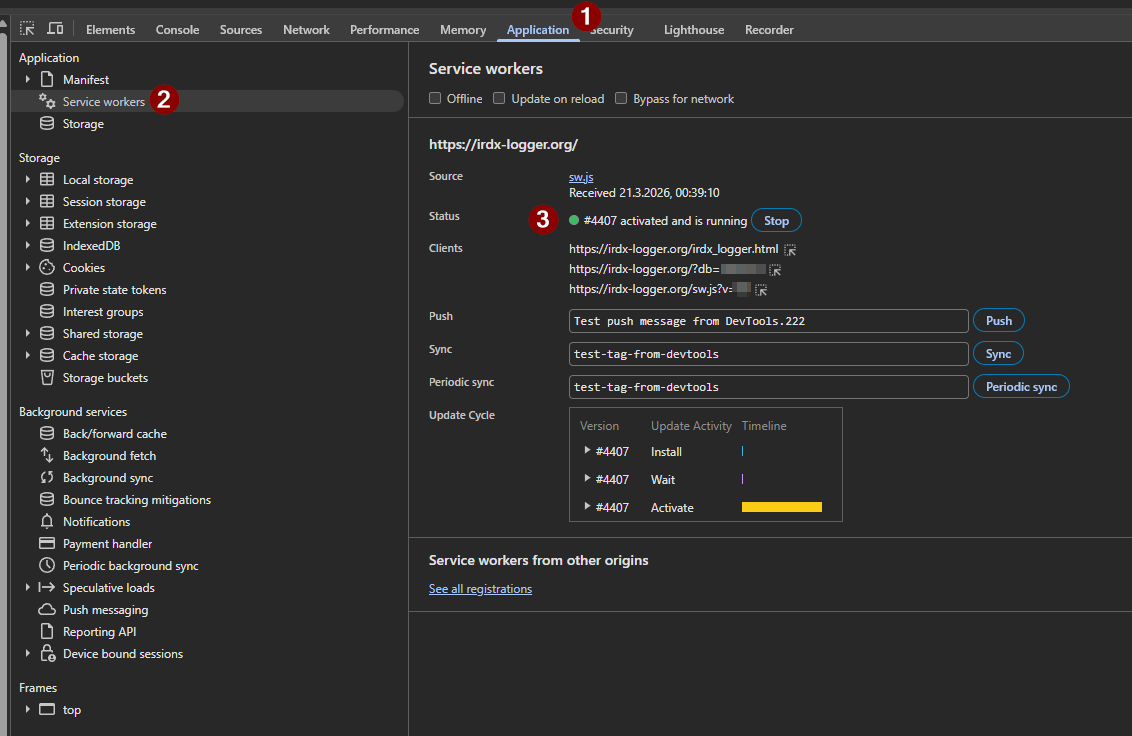
Then follow the red markers 1, 2, 3 shown in the screenshot:
- 1Open the Application tab in DevTools.
- 2In the left menu, click Service workers.
- 3Check the status line for
https://irdx-logger.org/: it should show activated and is running.
Expected (working):
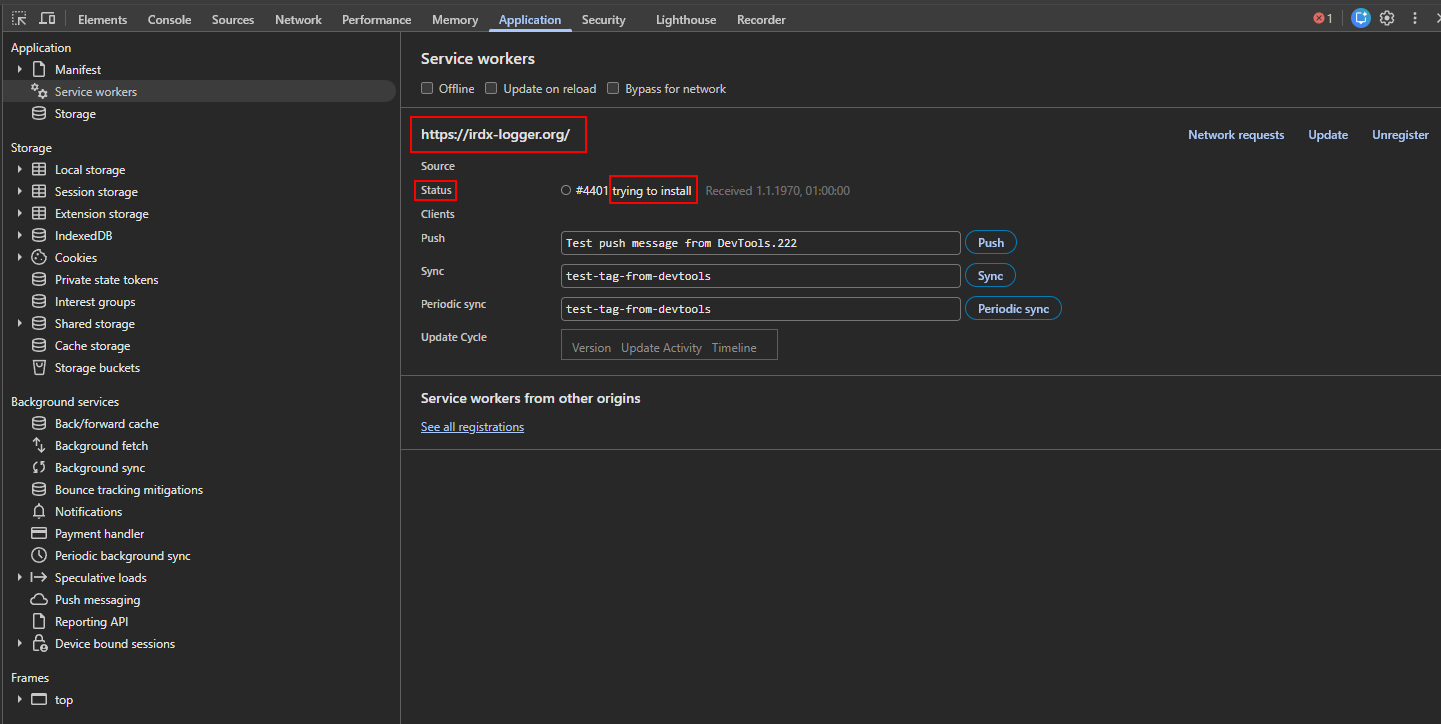
Problem (blocked):
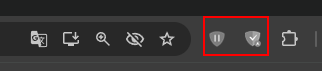
Check security app toolbar state:
Disable security app filtering (or add site exception):
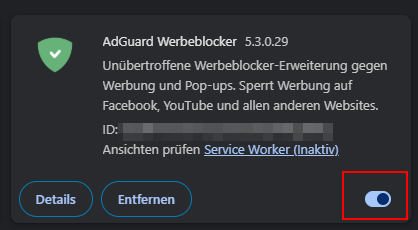
- Open chrome://extensions/.
- Temporarily disable security blockers (example: AdGuard).
- Or create an allow/exception rule for
https://irdx-logger.org. - Reload IRDX Logger and re-check Application > Service workers.
Offline mode not working? Step 2: Clear browser site data (Chrome)
If Step 1 did not solve it, clear site storage in DevTools.
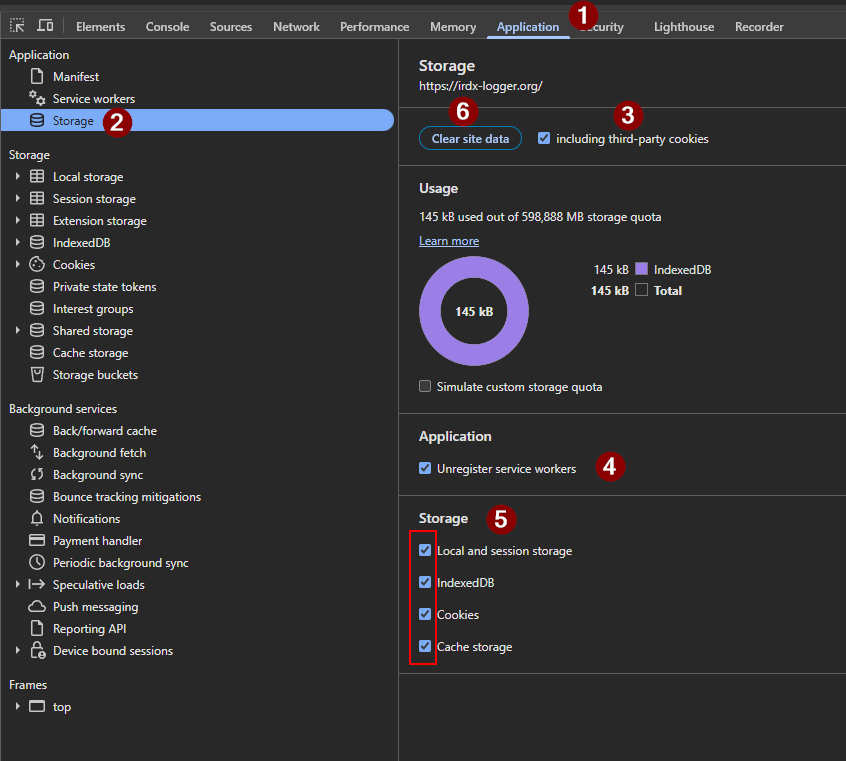
- 1Press
F12and open the Application tab. - 2In the left panel, click Storage.
- 3Keep including third-party cookies enabled.
- 4Keep Unregister service workers enabled.
- 5Keep storage checkboxes enabled:
Local and session storage,IndexedDB,Cookies,Cache storage. - 6Click Clear site data, then reload IRDX Logger.
Official Chrome docs: Clear Local Storage / site storage
Fastest Method (inside IRDX Logger)
- Open More.
- Click Hard Reset and confirm.
- Reload the page.
This is the easiest method for most users.
If Installed as App (PWA)
Use the matching path for your device:
Windows (Chrome/Edge installed app)
- Open the installed IRDX Logger app window.
- Open the menu (
...in Chrome/Edge). - Click App info or Uninstall IRDX Logger.
- Confirm uninstall. If shown, enable also clear data.
Android
- Long-press the IRDX Logger app icon.
- Tap App info (or the
iicon). - Tap Uninstall and confirm.
iPhone / iPad
- Long-press the IRDX Logger icon on the Home Screen.
- Tap Remove App.
- Tap Delete App and confirm.
After uninstall: open IRDX Logger in the browser again, run More > Hard Reset once, then install again if needed.
Important
- This affects only your local browser/device data.
- Offline logs not synced yet can be lost after reset.
- If possible, run a sync first while online.